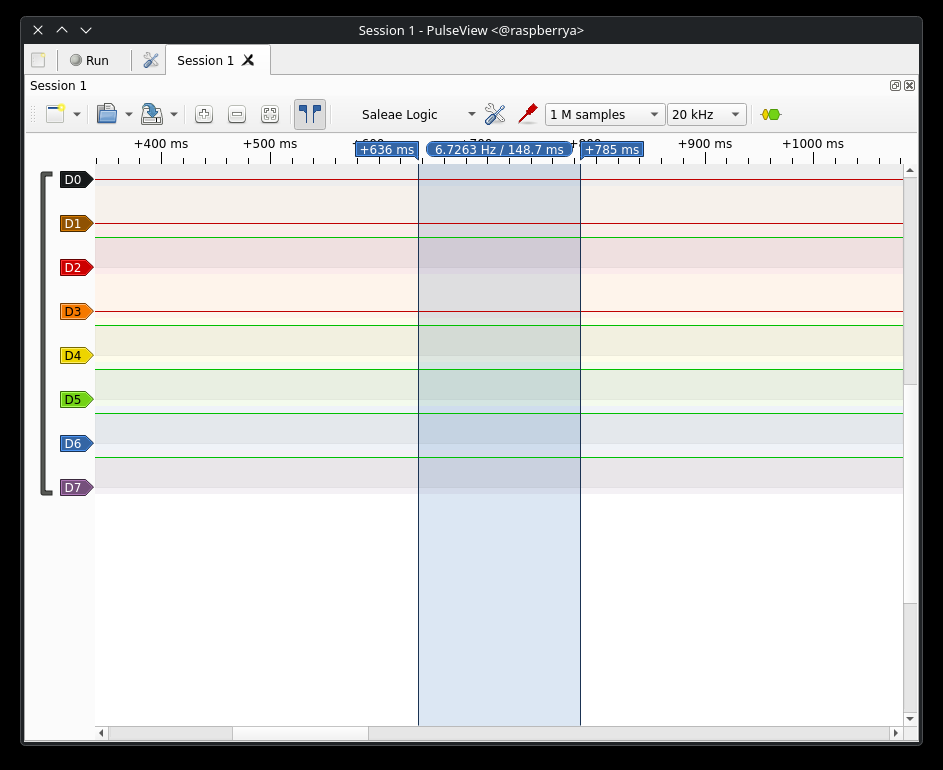
Sigrok for Raspberry Pi - a Cross Compiler Script and Installation.
We use a Grok Written Script to compile and build sogrok from scratch using a sysroot!


NOTE: This is a hybrid article. This means some sections were written by AI, and some by a human. The script was actually tested for working validity on a Raspberry Pi 4 with 2GB of RAM. That difference might be subtle - but in a world of AI article slop, knowing a human used this, audited it and implemented it means it's probably going to work for you!
This guide can be mostly skipped by simply:
sudo apt install pulseview- It should be noted there was probably about 30 iterations to make this script work. You would compile it, it would get so far, it would break, you would add a library, update the script, then try again.. It can be quite challenging! This guide evolved over the days that were spent attempting over and over again to compile sigrok from source.
- This is an extensive guide - but really if you can accomplish this compile - you can pretty much compile anything.
- sigrok is a powerful logic analyzer that can map the output and timings of digital pins allowing you to see if you physically are driving a GPIO pin.
- One may need to compile software directly to run on a Raspberry Pi. Because they utilize arm32, arm64, and now with Raspberry Pi 5 - the bcom architectures, you will need to modify your gcc settings depending. Grok gives us this information:
- This script is powerful because you can equally do the compiling on a PC - using the raspberry pi as a reference library of objects - this can speed up stuff dramatically when you are not 'locked' to using the minimal processing power of the Raspberry Pi, but can use the more powerful CPU of a larger high-core server.
- Running this from a pc. At the end we look at hyper-speed compiling by using a standard PC to link to a Raspberry Pi, pull the appropriate files and compile there using the appropriate -march setting
- At the end of this article you will probably need one of the logic analyzer drivers. We show a simple process for that.
Out of Ram Errors
Before you even start know that this is a big compile. Our 2GB Raspberry Pi 4 could not compile this even with -j 1 (Using 1 core - so..)
- If you have a 4 GB or higher the fix is to reduce the number of parallel threads down to -j 1, which is modified inside the sigrok-cross-linux directory (sigrok-util/cross-compile/linux/sigrok-cross-compile)
- We ended up with a crazee large 8GB swap file, we explain at the end of this article how to do this, and it is highly recommended that you do this first
# Edit this to enable/disable/modify parallel compiles.
PARALLEL="-j 1"- This error will not show up as 'out-of-memory' instead the system will simply kill the compiler and you will get mysterious errors such as:

If you have a 2GB or less Raspberry Pi then you MUST upgrade your swap space, and there are different methods to do this at the end of the article.
Applicable -march Settings
The following -march values are supported by GCC for AArch64 and apply to Raspberry Pi ARM64 architectures. They are listed in increasing order of feature richness, with notes on compatibility across models. GCC natively supports all these settings, meaning it can generate code for them without requiring external patches or custom configurations, as long as the GCC version is sufficiently recent (e.g., GCC 8 or later, which is standard on modern systems). Using a higher -march than the hardware supports may result in code that fails to execute due to unsupported instructions.
- -march=armv8-a: The baseline for all ARM64 Raspberry Pi models (Pi 3, 4, and 5). This enables the core ARMv8-A instruction set, including floating-point (+fp) and Advanced SIMD (+simd) by default. It is fully compatible and recommended for broad portability across these models.
- -march=armv8-a+crc: Extends armv8-a with the CRC (Cyclic Redundancy Check) extension for improved checksum operations. Supported on all ARM64 Raspberry Pi models, as their CPUs implement this hardware feature.
- -march=armv8.1-a: Includes all features of armv8-a, plus extensions such as Large System Extension (+lse), Round Double Multiply Accumulate (+rdma), and CRC (+crc enabled by default). Compatible with Raspberry Pi 4 and 5; may not be fully supported on Pi 3 without fallback handling for unsupported instructions.
- -march=armv8.2-a: Builds on armv8.1-a with additional features like optional half-precision floating-point extensions. Specifically applicable to the Raspberry Pi 5, but backward-compatible with Pi 3 and 4 if no higher instructions are used.
- -march=armv8-a+crypto (or equivalents like armv8.1-a+crypto): Enables the Crypto extension (+crypto), which includes AES, SHA2, and polynomial multiply instructions. While GCC natively supports this for code generation, it is not natively implemented in the hardware of Raspberry Pi CPUs (Cortex-A53, A72, or A76). Enabling it may lead to runtime errors (e.g., illegal instructions) on these devices unless software emulation is used, which is inefficient. Thus, it applies but is not recommended for Raspberry Pi without verification.
A sigrok Universal Script for Compiling on Various Raspberry Pi Machines
GNU nano 8.4                                                                                 compile_sigrok.sh
#!/bin/bash

# Function to display usage
usage() {
echo "Usage: $0 --arch <32|64> --rpi-ip <IP> [--rpi-user <user>] [--build-gui <yes|no>] [--march <flag>]"
echo "  --arch: Target architecture (32 for arm-linux-gnueabihf, 64 for aarch64-linux-gnu)"
echo "  --rpi-ip: IP address of the Raspberry Pi for sysroot"
echo "  --rpi-user: SSH username on Raspberry Pi (default: pi)"
echo "  --build-gui: Build PulseView GUI (yes/no, default: no)"
echo "  --march: Optional GCC -march flag (e.g., armv8-a)"
exit 1
}

# Parse arguments
while [[ $# -gt 0 ]]; do
case $1 in
--arch) ARCH="$2"; shift 2 ;;
--rpi-ip) RPI_IP="$2"; shift 2 ;;
--rpi-user) RPI_USER="$2"; shift 2 ;;
--build-gui) BUILD_GUI="$2"; shift 2 ;;
--march) MARCH="$2"; shift 2 ;;
*) usage ;;
esac
done

# Validate required arguments
if [ -z "$ARCH" ] || [ -z "$RPI_IP" ]; then
usage
fi
RPI_USER=${RPI_USER:-pi}
BUILD_GUI=${BUILD_GUI:-no}
MARCH=${MARCH:-}

# Determine toolchain triplet
if [ "$ARCH" == "32" ]; then
TRIPLET="arm-linux-gnueabihf"
TOOLCHAIN_PKG="gcc-arm-linux-gnueabihf g++-arm-linux-gnueabihf"
elif [ "$ARCH" == "64" ]; then
TRIPLET="aarch64-linux-gnu"
TOOLCHAIN_PKG="gcc-aarch64-linux-gnu g++-aarch64-linux-gnu"
else
echo "Invalid architecture. Use 32 or 64."
exit 1
fi

# Set directories
SYSROOT_DIR="$HOME/rpi-sysroot-$ARCH"
PREFIX_DIR="$HOME/sigrok-arm-$ARCH"
UTIL_DIR="$HOME/sigrok-util"
BUILD_DIR="$UTIL_DIR/cross-compile/linux/build-$ARCH"
SCRIPT_FILE="$UTIL_DIR/cross-compile/linux/sigrok-cross-linux"

# Step 1: Install prerequisites
echo "Installing host prerequisites..."
sudo apt update
sudo apt install -y git autoconf automake libtool pkg-config cmake
sudo apt install -y git gcc g++ make autoconf automake libtool pkg-config libglib2.0-dev libzip-dev libusb-1.0-0-dev libftdi1-dev libglibmm-2.4-dev doxygen check libboost-all-dev
sudo apt install -y python3-dev sdcc
sudo apt install -y libglibmm-2.4-dev doxygen
sudo apt install -y python3-gi python3-dev swig
sudo apt install -y qt6-base-dev
sudo apt install -y build-essential pkg-config \
libglib2.0-dev libglib2.0-dev libusb-1.0-0-dev libusb-1.0-0-dev \
libzip-dev libftdi1-dev libieee1284-3-dev libserialport-dev \
libusb-dev libhidapi-dev libftdi-dev python3-dev swig \
libpython3-dev libqt6core6 libqt6widgets6 qt6-base-dev qt6-tools-dev \
libglibmm-2.4-dev libzip-dev libusb-1.0-0-dev qt6-svg-dev
make gcc g++ \
libglib2.0-dev libusb-1.0-0-dev libzip-dev zlib1g-dev libftdi1-dev \
libhidapi-dev libserialport-dev rsync $TOOLCHAIN_PKG

# Step 2: Set up sysroot
echo "Setting up sysroot from Raspberry Pi..."
mkdir -p "$SYSROOT_DIR"
rsync -avz --rsync-path="sudo rsync" "$RPI_USER@$RPI_IP:/lib" "$SYSROOT_DIR"
rsync -avz --rsync-path="sudo rsync" "$RPI_USER@$RPI_IP:/usr" "$SYSROOT_DIR"

# Step 3: Clone sigrok-util
echo "Pulling sigrok-util repository..."

REPO_URL="https://github.com/sigrokproject/sigrok-util.git"
TARGET_DIR="$(pwd)/sigrok-util"

git pull git://sigrok.org/sigrok-util.git "$UTIL_DIR"

# Step 4: Modify sigrok-cross-linux script
echo "Modifying cross-compilation script..."
cd "$UTIL_DIR/cross-compile/linux"
cp sigrok-cross-linux sigrok-cross-linux-arm

# Use sed to modify the script (adjust as needed for your environment)
sed -i "s|^TOOLCHAIN=.*|TOOLCHAIN=/usr|" sigrok-cross-linux-arm
sed -i "s|^TOOLCHAIN_TRIPLET=.*|TOOLCHAIN_TRIPLET=$TRIPLET|" sigrok-cross-linux-arm
sed -i "s|^C=\"--host=.*|C=\"--host=\$TOOLCHAIN_TRIPLET --sysroot=$SYSROOT_DIR\"|" sigrok-cross-linux-arm
sed -i "s|^export PATH=.*|export PATH=\$TOOLCHAIN/bin:\$PATH|" sigrok-cross-linux-arm
sed -i "s|^PREFIX=.*|PREFIX=$PREFIX_DIR|" sigrok-cross-linux-arm
sed -i "s|^BUILDDIR=.*|BUILDDIR=$BUILD_DIR|" sigrok-cross-linux-arm
sed -i "s|^PARALLEL=.*|PARALLEL=\"-j \$(nproc)\"|" sigrok-cross-linux-arm

# Add MARCH if specified
if [ -n "$MARCH" ]; then
sed -i "/^export CFLAGS=/ s/$/ -march=$MARCH/" sigrok-cross-linux-arm
sed -i "/^export CXXFLAGS=/ s/$/ -march=$MARCH/" sigrok-cross-linux-arm
fi

# Disable PulseView if not building GUI
if [ "$BUILD_GUI" != "yes" ]; then
sed -i '/^# PulseView$/,/^$/ s/^/#/' sigrok-cross-linux-arm  # Comment out PulseView section
fi

# Add PKG_CONFIG_PATH for sysroot
sed -i "/^export PATH=/a export PKG_CONFIG_PATH=$SYSROOT_DIR/usr/lib/pkgconfig:$SYSROOT_DIR/usr/share/pkgconfig" sigrok-cross-linux-arm

# Step 5: Execute the modified script
echo "Executing cross-compilation..."
chmod +x sigrok-cross-linux-arm
./sigrok-cross-linux-arm

# Step 6: Completion
if [ $? -eq 0 ]; then
echo "Compilation completed successfully. Binaries installed to $PREFIX_DIR."
echo "Transfer to Raspberry Pi: rsync -avz $PREFIX_DIR/ $RPI_USER@$RPI_IP:~/sigrok-arm"
else
echo "Compilation failed. Check logs in $BUILD_DIR for details."
fi
- We were curious why a sysroot environment required setup - effectively it creates a vitual directory that will match the compiling environment to ensure that compilation is effective - which is strange as it has you rsync back into your raspberry pi - but it works
It should be noted that you can put this inside a file say - compile_sigrok.sh and then make it executable with:
chmod +x compile_sigrok.shWhen it is run it will present with the following command line:
Usage: ./complile_sigrok.sh --arch <32|64> --rpi-ip <IP> [--rpi-user <user>] [--build-gui <yes|no>] [--march <flag>]
--arch: Target architecture (32 for arm-linux-gnueabihf, 64 for aarch64-linux-gnu)
--rpi-ip: IP address of the Raspberry Pi for sysroot
--rpi-user: SSH username on Raspberry Pi (default: pi)
--build-gui: Build PulseView GUI (yes/no, default: no)
--march: Optional GCC -march flag (e.g., armv8-a)
We ran it as:
./compile_sigrok.sh --arch 64 --rpi-ip 192.168.1.240 --rpi-user c --build-gui yes- Now we find something to do - this takes a LONG time.
What a Sysroot Is
A sysroot is a directory on the host machine that contains a subset of the target system's filesystem—specifically, the headers (/usr/include), libraries (/usr/lib, /lib), and related files required for compilation and linking. It acts as a "fake" root filesystem for the cross-compiler, allowing it to reference the target environment rather than the host's native one.
Why It Is Required in Cross-Compilation
When cross-compiling:
- The cross-compiler (e.g., aarch64-linux-gnu-gcc or arm-linux-gnueabihf-gcc) generates ARM-compatible object files and executables.
- However, the compiler must know the exact layout, versions, and symbols of libraries and headers on the target system (Raspberry Pi OS on ARM).
- Without a sysroot, the compiler defaults to the host's headers and libraries (e.g., x86_64 glibc and libusb), which differ in:
- Architecture (ABI mismatch)
- Library versions (e.g., glibc 2.35 on host vs. 2.31 or 2.36 on Raspberry Pi OS)
- Symbol availability and function signatures This leads to:
- Compilation errors (missing headers or undefined symbols)
- Linking failures (incompatible object files)
- Runtime errors on the target device (illegal instructions, missing shared libraries, or segmentation faults)
By providing a sysroot populated with files from the actual target device:
- The --sysroot option passed to the compiler (via the toolchain triplet and script modifications) directs it to use the target's headers during compilation and the target's libraries during linking.
- The resulting binaries are guaranteed to be compatible with the specific Raspberry Pi OS installation, including correct runtime dependencies (e.g., libglib-2.0.so, libusb-1.0.so).
Why rsync from the Running Raspberry Pi
The script uses rsync to copy /lib and /usr directly from a live Raspberry Pi because:
- Raspberry Pi OS is Debian-based, and package versions (e.g., libusb-1.0, libzip, glib) can vary between releases or custom configurations.
- Copying from the device ensures exact matching of library versions, header files, pkg-config files (.pc files in /usr/lib/pkgconfig), and symbolic links.
- Alternatives (e.g., downloading pre-built sysroots or using debootstrap to create one) are possible but often less reliable or more complex, as they may not perfectly match your Pi's installed packages and versions.
- The --rsync-path="sudo rsync" is necessary because /lib and parts of /usr are owned by root on the Pi, and remote rsync over SSH requires elevated privileges on the remote side to read them.
Specific Relevance to sigrok
sigrok relies on several system libraries (e.g., libglib2.0, libusb-1.0, libserialport, libftdi1, libhidapi, libzip) with development headers and pkg-config metadata. Cross-compiling without a matching sysroot frequently fails due to:
- Incompatible glibc or libstdc++ versions
- Missing or mismatched .pc files, causing pkg-config to report incorrect paths or versions
- Linking against host libraries, producing ARM binaries that crash on the Pi
By syncing the sysroot first, the script ensures that configure, autotools, and CMake (used by PulseView) detect and use the correct target environment.
Compiling on the PC
- We built the exact same script on a PC, ran it with these options - and pointed the rsync back to the same raspberry pi:
- It will ask for the PC password first. It also helps to have a passwordless rsync by generating an access password as in:
ssh-keygen
ssh-copy-id <user>@<raspberry_pi_ip>- Once you have this done, you can edit
/sigrok.sh --arch 64 --rpi-ip 192.168.1.23 --rpi-user c --build-gui yes- It should be noted that if the program is ran twice rsync is insanely fast - once the files have been moved over.
- For future compilations you can modify the sigrok-util/cross-compile/linux/sigrok-cross-compile location for
# Edit this to enable/disable/modify parallel compiles.
PARALLEL="-j 1"
Increasing your Swap Space When You Run out of RAM
- If this does not work, try zramctl, or swapon methods at the end of this article.
To increase swap space on a Raspberry Pi for compilation tasks (e.g., building large software packages that exceed available physical RAM), follow the appropriate procedure based on your Raspberry Pi OS version. Compilation workloads, particularly C/C++ projects or those involving parallel make jobs, frequently exhaust memory and benefit from additional swap to prevent out-of-memory kills.
Important considerations:
- Swap on SD cards is slow and causes wear; use it only when necessary.
- For best results with heavy compilation, prefer a Raspberry Pi model with higher RAM (4 GB or 8 GB), an external SSD for storage, and limit parallel jobs (e.g.,
make -j2instead of-j4). - Zram (compressed RAM-based swap) is often more effective than disk-based swap for performance and SD card longevity, especially on newer releases.
Determine Your Raspberry Pi OS Version
Run:
cat /etc/os-release
- Bookworm (or earlier): Uses
dphys-swapfile(disk-based swap file at/var/swap). - Trixie (or newer, post-2025): Uses
rpi-swap(defaults to zram with optional disk backing).
Method 1: Raspberry Pi OS Bookworm (or Earlier) – Using dphys-swapfile
This creates or resizes a traditional swap file on disk.
Temporarily disable swap:
sudo dphys-swapfile swapoff
Edit the configuration file:
sudo nano /etc/dphys-swapfile
Locate the line:
CONF_SWAPSIZE=100
Change the value to your desired size in megabytes. Recommended values for compilation:
- 1024 (1 GB) – moderate workloads
- 2048 (2 GB) – most large builds
- 4096 (4 GB) – very memory-intensive projects
If the line CONF_MAXSWAP exists and limits the size (e.g., to 2048), uncomment and increase it accordingly.
Save and exit (Ctrl+O, Enter, Ctrl+X).
Recreate the swap file with the new size:
sudo dphys-swapfile setup
Re-enable swap:
sudo dphys-swapfile swapon
Alternatively, restart the service:
sudo /etc/init.d/dphys-swapfile restart
Verify:
free -h
swapon --show
Method 2: Raspberry Pi OS Trixie (or Newer) – Using rpi-swap (Recommended: Zram)
Newer releases favor zram for better speed and reduced SD card writes.
Check current configuration:
cat /etc/rpi/swap.conf
Look for sections like [Zram] or [File].
Edit the configuration (use sudo nano /etc/rpi/swap.conf):
- For zram-only (fastest, no disk writes during active use):
Uncomment/adjust under[Zram]:
RamMultiplier=2          # ≈2× physical RAM, compressed
MaxSizeMiB=4096          # cap at 4 GB uncompressed equivalent
- For zram with disk backing (hybrid, survives full zram):
Set:
FixedSizeMiB=4096 # or your desired disk backing size
Apply changes:
sudo systemctl restart rpi-swap
Verify:
free -h
zramctl
swapon --show
If rpi-swap is not present but you prefer zram, install zram-tools or configure via systemd-zram-generator manually.
Additional Recommendations for Compilation
- Reduce
swappinessto favor RAM over swap:
echo 'vm.swappiness=10' | sudo tee -a /etc/sysctl.conf
sudo sysctl -p
- Monitor during builds:
watch -n 1 free -h
- For very large projects, cross-compile on a more powerful machine if feasible.
These steps should allow most compilation tasks to complete without immediate memory exhaustion. If you specify your Raspberry Pi model, OS version, or the particular software being compiled, more precise tuning can be provided.
The absence of the dphys-swapfile command indicates that your Raspberry Pi is running a recent version of Raspberry Pi OS where the traditional disk-based swap management has been replaced. Specifically, starting with Raspberry Pi OS Trixie (released around late 2025 and the current stable branch as of early 2026), the system uses the newer rpi-swap package by default. This provides more modern and efficient swap handling, primarily relying on zram (compressed RAM-based swap) with optional periodic write-back to a disk file for persistence.
This change improves performance on memory-constrained devices, reduces unnecessary SD card writes (extending card lifespan), and adapts better to varying hardware configurations.
Confirm Your Swap Configuration
Execute these commands to verify the active mechanism:
free -h
swapon --show
zramctl
systemctl status rpi-swap
- If
zramctlshows one or more devices (e.g.,/dev/zram0), zram is in use. - If
swapon --showlists/var/swapor similar, a file-based component may be active as backing storage. - The
rpi-swapservice should appear as active.
How to Increase Swap Space on rpi-swap Systems
Configuration is managed through a single file: /etc/rpi/swap.conf.
Open the configuration file for editing:
sudo nano /etc/rpi/swap.conf
Adjust the relevant parameters (uncomment or modify as needed). Key sections and recommended values for compilation workloads include:
For zram-only (fastest, no disk writes during normal operation; ideal for performance):
[Zram]
RamMultiplier=2          # Creates ~2× physical RAM of compressed swap (e.g., 8 GB on a 4 GB Pi)
MaxSizeMiB=4096          # Optional cap on uncompressed equivalent size
For hybrid zram + disk backing (allows overflow persistence; useful if you exhaust zram during very large builds):
[File]
FixedSizeMiB=4096        # Size of the on-disk backing file in MiB (e.g., 4 GB)
Save and exit the editor.
Apply the changes:
sudo systemctl restart rpi-swap
Verify the updated configuration:
free -h
zramctl
swapon --show
Additional Tuning for Compilation Workloads
- Lower swappiness to prioritize RAM (reduces premature swapping):
echo 'vm.swappiness=10' | sudo tee -a /etc/sysctl.conf
sudo sysctl -p
- Limit parallel compilation jobs (e.g., use
make -j2ormake -j$(nproc --all --ignore=1)instead of unrestricted-j) to avoid excessive memory pressure.
If You Prefer Traditional File-Based Swap
You can still configure a pure disk-based swap file (similar to the old dphys-swapfile behavior) by editing /etc/rpi/swap.conf to disable zram and set a large FixedSizeMiB under [File], then restart the service. However, zram (or hybrid) is generally superior for most use cases due to compression and reduced I/O.
If these steps do not match your system (e.g., the file /etc/rpi/swap.conf is missing or the service is not present), please provide the output of cat /etc/os-release and uname -a for more precise diagnosis. This will confirm the exact release and kernel details.
If you do not have the /etc/rpi/swap.conf - check for the /etc/dphys-swapfile
# /etc/dphys-swapfile - user settings for dphys-swapfile package
# author Neil Franklin, last modification 2010.05.05
# copyright ETH Zuerich Physics Departement
#   use under either modified/non-advertising BSD or GPL license

# this file is sourced with . so full normal sh syntax applies

# the default settings are added as commented out CONF_*=* lines


# where we want the swapfile to be, this is the default
#CONF_SWAPFILE=/var/swap

# set size to absolute value, leaving empty (default) then uses computed value
#   you most likely don't want this, unless you have an special disk situation
CONF_SWAPSIZE=4096

# set size to computed value, this times RAM size, dynamically adapts,
#   guarantees that there is enough swap without wasting disk space on excess
CONF_SWAPFACTOR=2

# restrict size (computed and absolute!) to maximally this limit
#   can be set to empty for no limit, but beware of filled partitions!
#   this is/was a (outdated?) 32bit kernel limit (in MBytes), do not overrun it
#   but is also sensible on 64bit to prevent filling /var or even / partition
#CONF_MAXSWAP=2048
Installing various firmware drivers
- saelogic is a popular logic driver if you are looking for inexpensive generic drivers.
git clone https://github.com/wuxx/sigrok-firmware-fx2lafw/tree/master/sigrok-firmware-fx2lafwAs we have installed everything pretty much imaginable for compilers getting the main pulseview to compile, thus:
 git clone git://sigrok.org/sigrok-firmware-fx2lafw
 cd sigrok-firmware-fx2lafw
 ./autogen.sh
 ./configure
 make
Remote Access to your PulseView Software:
- Can be accomplished by simply appending -X or -Y to your ssh, namely:
ssh -Y <you>@<your_raspberrypi_ip>pulseview