ZebraDraw: localLLM Bulk Drawing Orchestrator
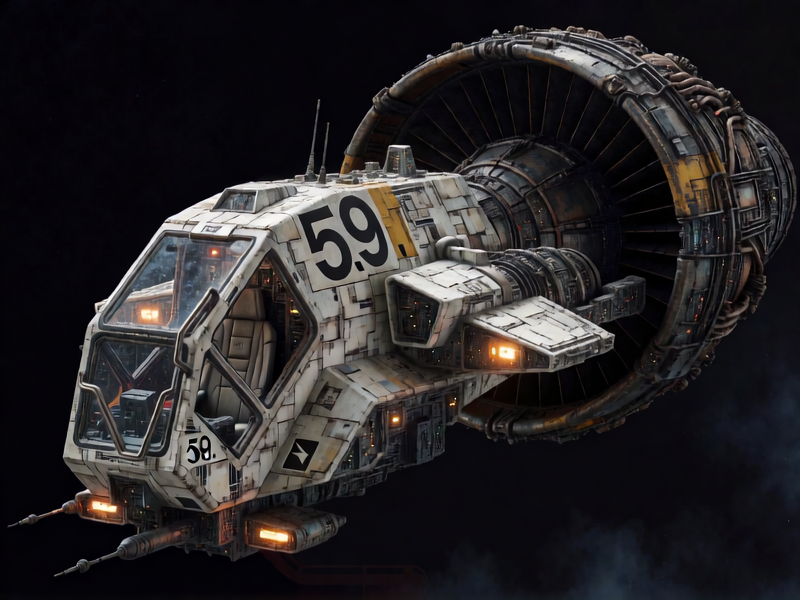
We use a localLLM to generate 1000's of amazing space art!

ZebraDraw is a bulk drawing tool, that can allow a localLLM to draw hundreds of batched photos all night!
Licensing: Please ensure you have the correct license for whatever diffusion engine you are using if you are going for commercial work. ZebraDraw is completely opensource
Pull and run it as a Docker Image
- This can be easily pulled and ran with a few simple commands.
sudo mkdir -p \
  /opt/zebra-draw/models \
  /opt/zebra-draw/config \
  /opt/zebra-draw/results

docker run -d \
  --name zebra-draw \
  --gpus all \
  --restart unless-stopped \
  -p 0.0.0.0:8080:8080 \
  -p 0.0.0.0:8081:8081 \
  -p 0.0.0.0:8082:8082 \
  -e MODEL_PATHS=/models \
  -v /opt/zebra-draw/models:/models:ro \
  -v /opt/zebra-draw/config:/config \
  -v /opt/zebra-draw/results:/results \
  cnmcdee/zebradraw:latest
You will probably want to give your local user access to those directories it's just easier for testing so chown -R user:user /opt/zebra-draw
Port 8081 - GPU Diffusion Model Setup.
We needed to show this port first, as port 8080 and 8082 will not work if this is not setup. There are lots of different ways this can work but simply you will want a model configuration that looks like this: Whatever the local ip of your machine is you should be able to find it by opening a browser window: 192.168.0.<your ip>:8081 which you type into your local browser.
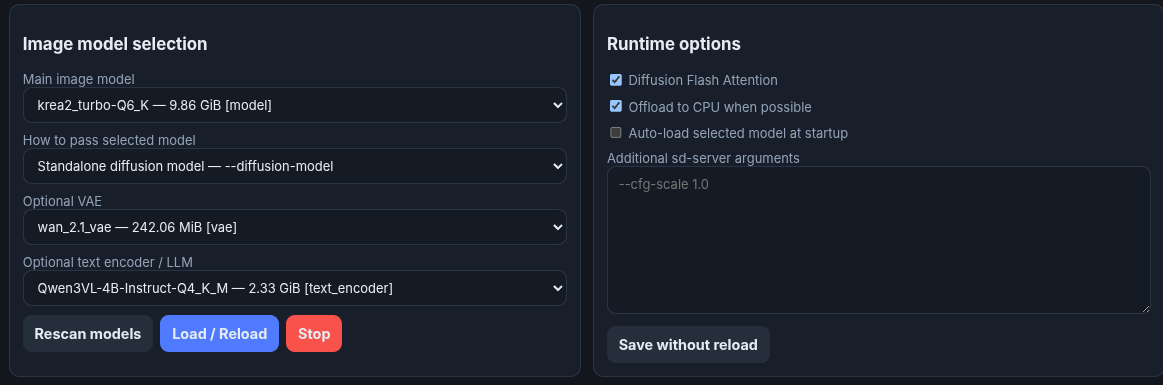
There are three parts to this model, not all are sometimes required..
- Main image model
krea2_turbo_Q6K - 9.86- It draws. - VAE
wan_2.1_vae - 242.0 mbThe translator between latent space and normal engine space. - Text Encoder
Qwen3VL-4B-Instruct-Q4-K_MThis converts your text intoimage embeddingsthat yourwan_2.1_vaewill require. - Click off
Standalone diffusion modelif you are using this setup.
To get and pull these models - remember to save them to your /opt/zebra-draw/models directory.
cd /model

wget -c -O krea2_turbo-Q6_K.gguf \
"https://huggingface.co/vantagewithai/Krea-2-Turbo-GGUF/resolve/main/krea2_turbo-Q6_K.gguf"

wget -c -O qwen_image_vae.safetensors \
"https://huggingface.co/Comfy-Org/Qwen-Image_ComfyUI/resolve/main/split_files/vae/qwen_image_vae.safetensors"

wget -c -O Qwen3VL-4B-Instruct-Q4_K_M.gguf \
"https://huggingface.co/Qwen/Qwen3-VL-4B-Instruct-GGUF/resolve/main/Qwen3VL-4B-Instruct-Q4_K_M.gguf"
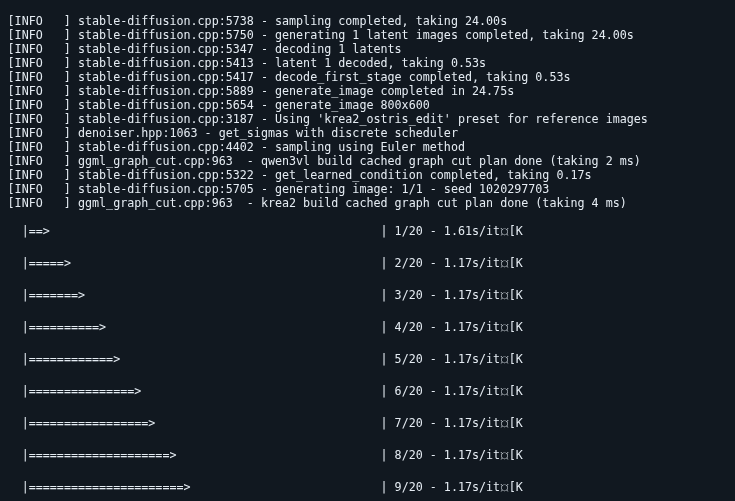
If it is loaded cleanly - you will will not get an error, it will look something like this at the bottom inside your sd-server.log
Port 8080 - Single Image Creation
- Once you are comfortable that your GPU inference engine is setup correctly, you can test a single draw, this is what
Port 8080is for:192.168.1.<your ip>:8080in your local browser Seed -1will make it completely random thus the same prompt will draw exactly the same if you used any number other than-1Steps 20is the number of iterations that the LLM will take to ensure empty spaces are filled intCFG ScaleLow 0-2 get really creative 5-7 be pretty strict about following the prompt.NOTE: After some investigation it is recommended in this instance to set it to 0.0
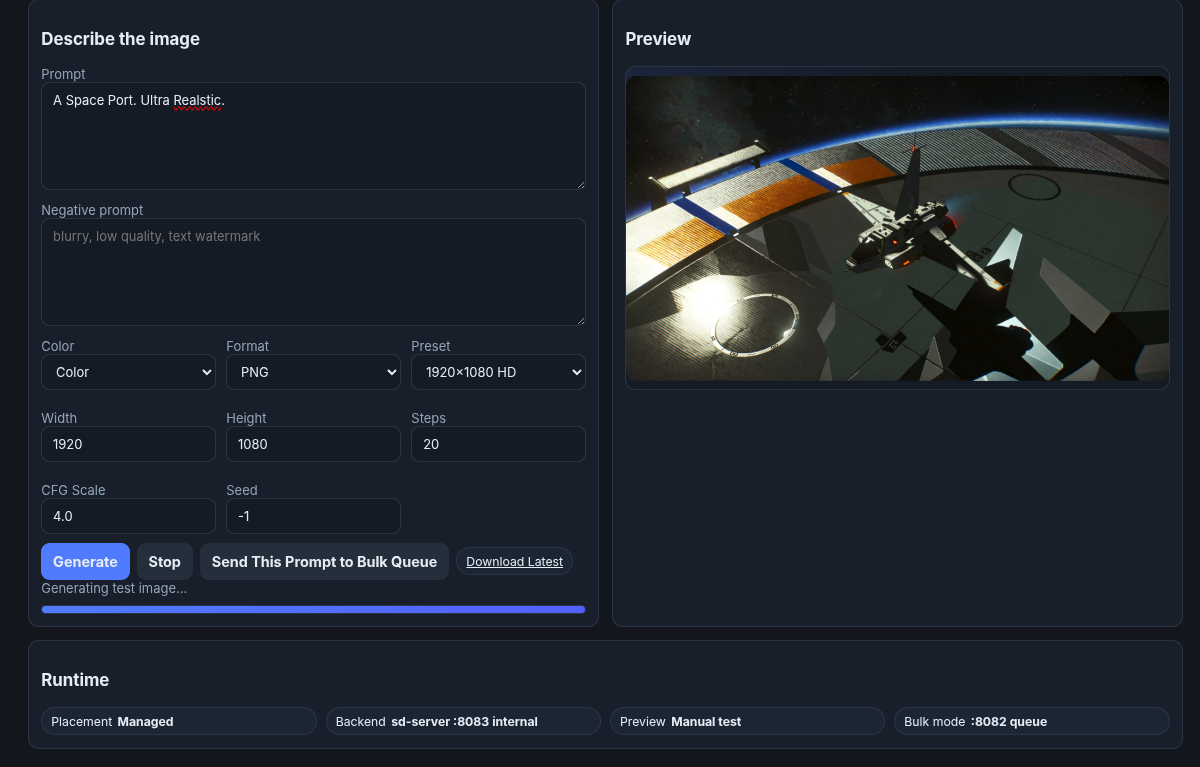
Note: Your diffusion model may not support resolutions very high - it is important to test it here.
Port 8082 - Bulk Drawing Images
192.168.1.<your ip>:8082in your browser- It is important to trial this on one or two images before bulking. The interface will look like this:
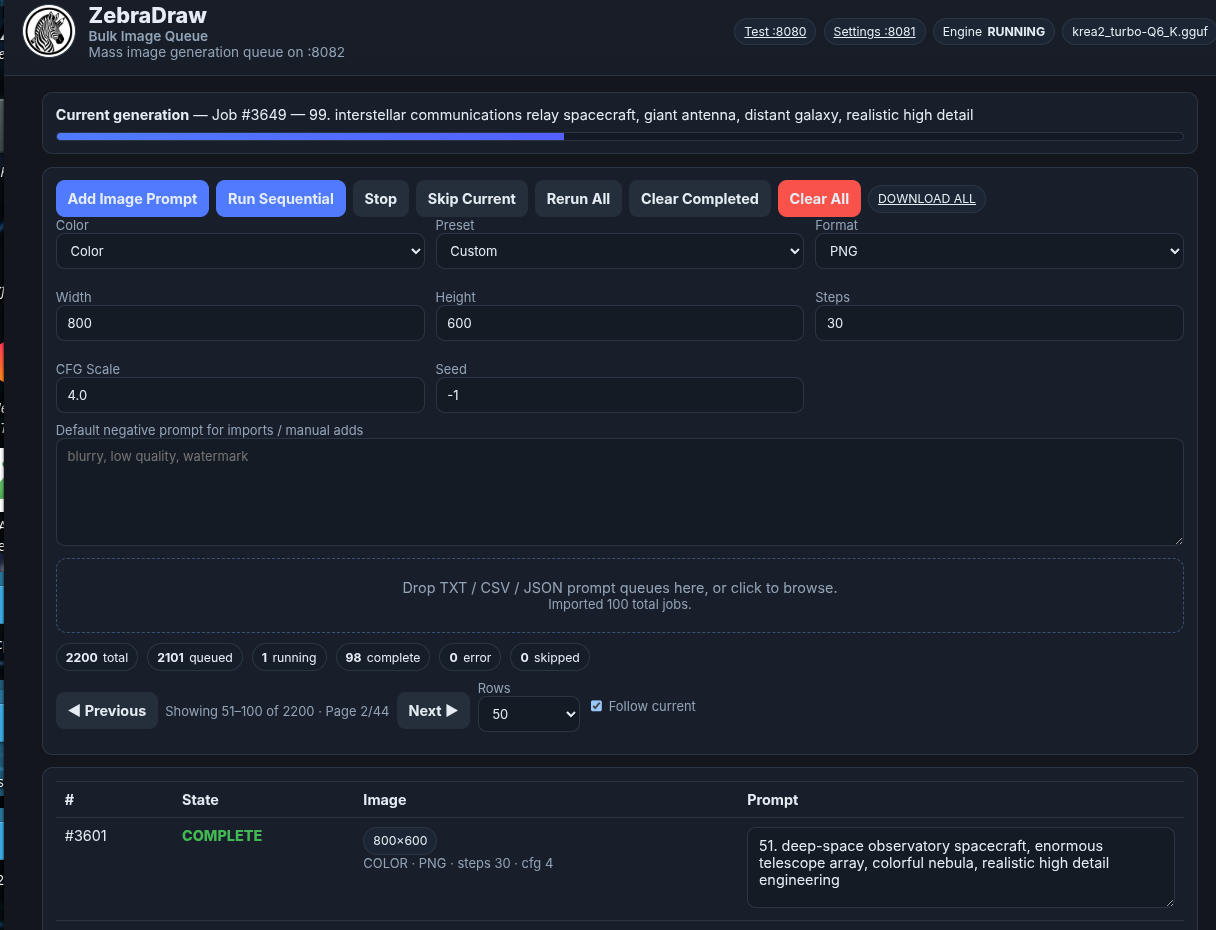
As it draws each one - it will show the image in the progress window, you can use the DOWNLOAD ALL button to have it pack and send you a zip file
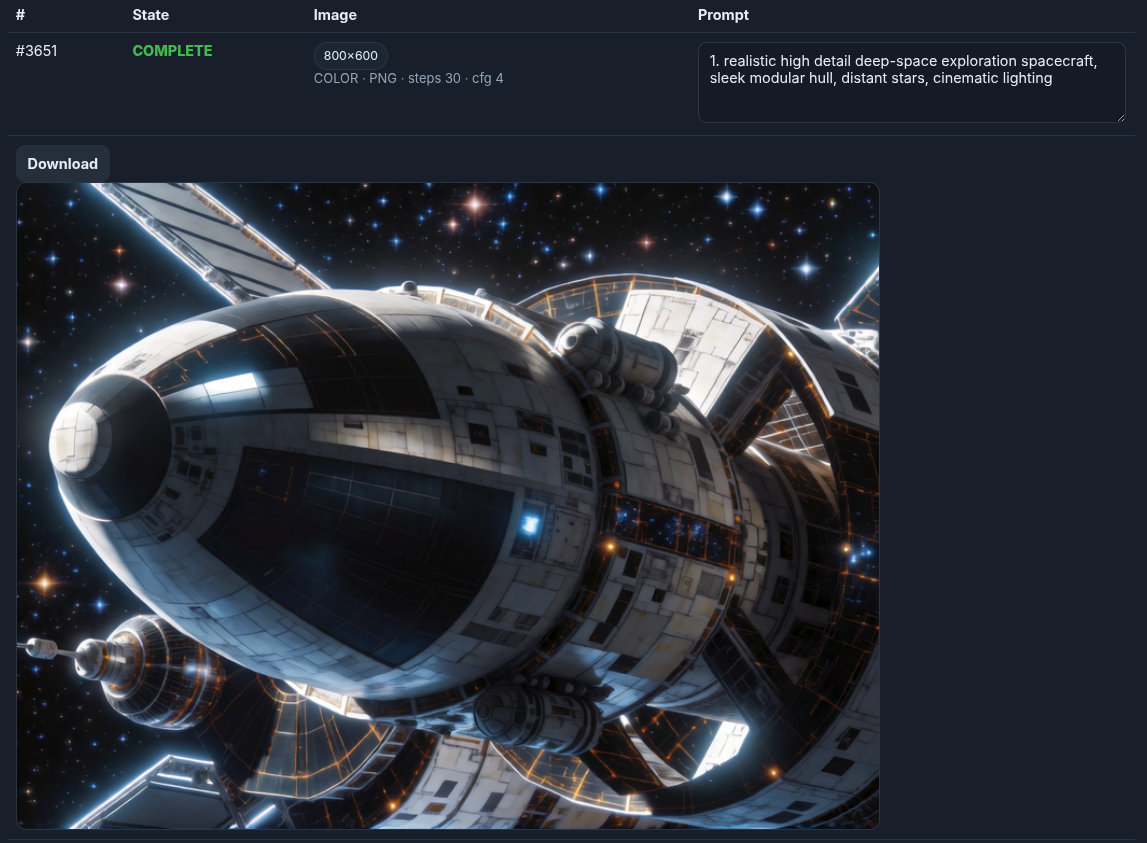
Use Chatgpt.com to write up 100 drawing prompts, here is an example prompt list:
Just drag-n-drop this file into the drag-n-drop box on the port and upload it!
Conclusions
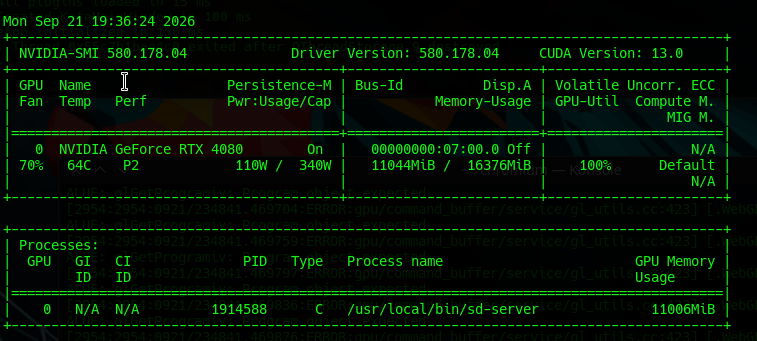
This is really powerful stuff - it is local and it is completely opensource and free. You can mix-n-match different models that you can save. It runs in a docker. If you need to see what your docker container looks like while running: docker ps -a, and finally watch nvidia-smi will show you a hard working GPU: