VPS Fitting Room
We go over running tiny versions of Linux that exist inside a 128 MB filesize!


So you wanna run Linux in a 128 MB / 2 GB HDD size!
- Yes.
- Yes you can!
If you spend any time at vpspricetracker.com you will see some crazy small VPS rentals. We pick out some tiny eenie weenie server boxes and explore - why are people renting this stuff, what can they even do with it? Grok 4 Gave us the following writeup which we supplemented with our own experimental results:
- For realistic effects we spun up our garganutous 1 GB / 1 Core $3/month VPS to simulate running these inside a docker container! This is gonna be fun!
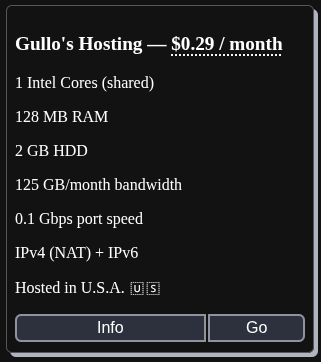
MicroSize 0 (128 MB / 2 GB HDD)
- 128 MB / 2 GB HDD. (Imagine you can run ten of these inside a $3 /month server!! lol)
Lightweight Linux Distributions Suitable for 128 MB RAM and 2 GB HDD
Based on system requirements for low-resource environments, the following five Linux distributions can operate within the specified constraints of 128 MB RAM and 2 GB hard disk space. These selections prioritize minimal footprints, with installations or runtime environments typically under 2 GB and capable of functioning with limited memory. Note that actual performance may vary depending on specific configurations and workloads.
- Alpine Linux: A security-oriented, lightweight distribution with a small disk footprint (base image approximately 5 MB) and low memory usage, suitable for embedded systems.
- Tiny Core Linux: An extremely minimal distribution (core system under 20 MB) designed for low-resource hardware, emphasizing modularity.
- SliTaz Linux: A compact distribution with a base size under 50 MB, optimized for speed and efficiency on older or constrained systems.
- Debian (Slim Variant): A stable, minimal version of Debian that can be configured for low resources, with a base image around 50 MB, adaptable for lightweight use cases like AntiX derivatives.
- Arch Linux (Base): A rolling-release distribution with a minimal base (around 150 MB image), customizable for low-memory environments.
For each distribution, a Docker recipe (Dockerfile) is provided to create a basic image. The Docker container setup includes build and run commands with a memory limit of 128 MB to simulate the RAM restriction. Disk limitation to 2 GB is not natively enforced by Docker (as containers share the host filesystem), but can be approximated by mounting a pre-allocated 2 GB loopback file from the host as the container's root or data volume. An example host command for creating such a file is: dd if=/dev/zero of=/path/to/2gb.img bs=1M count=2048; mkfs.ext4 /path/to/2gb.img. This file can then be mounted in the docker run command (e.g., -v /path/to/2gb.img:/mnt/limited).
A docker-compose.yml file is also provided for each, incorporating the memory limit under resource constraints. These configurations assume Docker and Docker Compose are installed on the host system.
Default logins for these Docker images are typically the root user with no password set, as is standard for many base Linux container images. Users should set a password immediately after starting the container (e.g., using passwd).
Note:
- Because these are tiny images running on a tiny server you need to remember to always set a ram limit, for instance do this:
docker run -it --memory=128m alpine-limited /bin/sh- Or to set a hard drive size:
docker run -it --memory=128m \
  --storage-opt size=2G \  # Limits writable layer to 2 GB
  alpine-limited /bin/sh
Once you leave the shell the little container just shuts off, so:
docker start <container_name>
docker ps -a  <- To see it.
docker attach <container_name>
At the end of this article we go over forcing persistence if you want your container to stay running all the time!
Stats:
- To see what kind of resources a container is using, we use:
docker stats- We can see here we are running alpine-minimal in only 472 KiB/128MiB!!

1. Alpine Linux
Dockerfile (Recipe):
FROM alpine:latest

# Minimal setup; no additional changes needed for base simulation
CMD ["/bin/sh"]
Docker Container Setup:
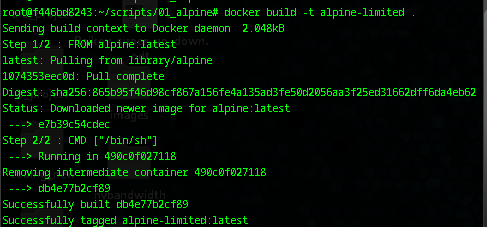
- Build:
docker build -t alpine-limited . - Run (with memory limit):
docker run -it --memory=128m alpine-limited /bin/sh - To approximate disk limit: Add
-v /path/to/2gb.img:/(mounts the limited file as root, requiring privileges).
docker run -it --memory=128m alpine-limited /bin/sh
/ #
/ # apk update- It works! It should be noted it has a full IP address as in:
/ # ip addr
1: lo: <LOOPBACK,UP,LOWER_UP> mtu 65536 qdisc noqueue state UNKNOWN qlen 1000
    link/loopback 00:00:00:00:00:00 brd 00:00:00:00:00:00
    inet 127.0.0.1/8 scope host lo
       valid_lft forever preferred_lft forever
42: eth0@if43: <BROADCAST,MULTICAST,UP,LOWER_UP,M-DOWN> mtu 1500 qdisc noqueue state UP
    link/ether 02:42:ac:11:00:02 brd ff:ff:ff:ff:ff:ff
    inet 172.17.0.2/16 brd 172.17.255.255 scope global eth0
       valid_lft forever preferred_lft forever
/ # ping 172.17.0.2
PING 172.17.0.2 (172.17.0.2): 56 data bytes
64 bytes from 172.17.0.2: seq=0 ttl=64 time=0.207 ms
64 bytes from 172.17.0.2: seq=1 ttl=64 time=0.156 ms
64 bytes from 172.17.0.2: seq=2 ttl=64 time=0.140 ms
64 bytes from 172.17.0.2: seq=3 ttl=64 time=0.132 ms
Adding a program was very easy:
apk add nano
For more information: man 8 apk
/ # apk add nano
(1/3) Installing ncurses-terminfo-base (6.5_p20251123-r0)
(2/3) Installing libncursesw (6.5_p20251123-r0)
(3/3) Installing nano (8.7-r0)
Executing busybox-1.37.0-r30.trigger
OK: 8964 KiB in 19 packages
For a docker-compose.yml:
version: '3'
services:
  alpine-sim:
    image: alpine-limited
    build: .
    deploy:
      resources:
        limits:
          memory: 128M
    command: /bin/sh
To execute the provided docker-compose.yml file and initiate the defined services, utilize the following typical command from the directory containing the file:
docker-compose upThis command will build (if necessary) and start the containers in the foreground, displaying logs for monitoring. For detached (background) operation, append the -d flag:
docker-compose up -dUpon startup, access the container interactively if needed using:
docker-compose exec <service-name> /bin/sh # Replace <service-name> with the service defined in the YAML, e.g., 'alpine-sim'Ensure Docker Compose is installed and the resource limits (e.g., memory) are respected as specified in the deployment configuration. Default logins remain as noted: root user with no password; execute passwd within the container to establish one for security purposes.
Default Logins: Root user; no password (run passwd to set one).
2. Tiny Core Linux
Dockerfile (Recipe):
FROM tatsushid/tinycore:latest

# Minimal setup for simulation
CMD ["/bin/sh"]
Docker Container Setup:
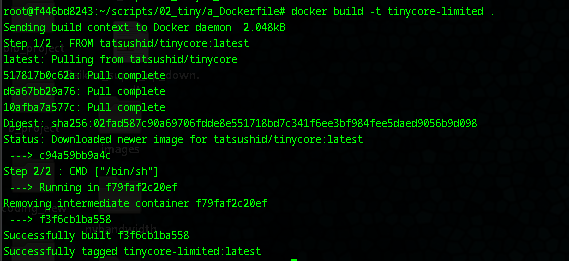
- Build:
docker build -t tinycore-limited . - Run (with memory limit):
docker run -it --memory=128m tinycore-limited /bin/sh - To approximate disk limit: Add
-v /path/to/2gb.img:/.
docker-compose.yml:
version: '3'
services:
  tinycore-sim:
    image: tinycore-limited
    build: .
    deploy:
      resources:
        limits:
          memory: 128M
    command: /bin/sh
docker-compose upDefault Logins: Root user; no password (run passwd to set one). Note: Tiny Core typically uses 'tc' as a non-root user in full installs, but the Docker image defaults to root.
3. SliTaz Linux
Dockerfile (Recipe):
FROM slitaz/slitaz-base:latest

# Minimal setup for simulation
CMD ["/bin/sh"]
Docker Container Setup:
- Build:
docker build -t slitaz-limited . - Run (with memory limit):
docker run -it --memory=128m slitaz-limited /bin/sh - To approximate disk limit: Add
-v /path/to/2gb.img:/.
docker-compose.yml:
version: '3'
services:
  slitaz-sim:
    image: slitaz-limited
    build: .
    deploy:
      resources:
        limits:
          memory: 128M
    command: /bin/sh
Default Logins: Root user; no password (run passwd to set one).
4. Debian (Slim Variant)
Dockerfile (Recipe):
FROM debian:bookworm-slim

# Minimal setup for simulation
CMD ["/bin/bash"]
Docker Container Setup:
- Build:
docker build -t debian-limited . - Run (with memory limit):
docker run -it --memory=128m debian-limited /bin/bash - To approximate disk limit: Add
-v /path/to/2gb.img:/.
docker-compose.yml:
version: '3'
services:
  debian-sim:
    image: debian-limited
    build: .
    deploy:
      resources:
        limits:
          memory: 128M
    command: /bin/bash
Default Logins: Root user; no password (run passwd to set one).
5. Arch Linux (Base)
Dockerfile (Recipe):
FROM archlinux:latest

# Minimal setup for simulation
CMD ["/bin/bash"]
Docker Container Setup:
- Build:
docker build -t arch-limited . - Run (with memory limit):
docker run -it --memory=128m arch-limited /bin/bash - To approximate disk limit: Add
-v /path/to/2gb.img:/.
docker-compose.yml:
version: '3'
services:
  arch-sim:
    image: arch-limited
    build: .
    deploy:
      resources:
        limits:
          memory: 128M
    command: /bin/bash
Default Logins: Root user; no password (run passwd to set one).
Five Examples of Usage Within These Restrictions
These examples illustrate practical applications for such resource-constrained environments, focusing on command-line operations suitable for servers or embedded systems.
- Run a Minimal Web Server: Install and start a lightweight HTTP server (e.g., using
busybox httpdin Alpine or Tiny Core) to serve static files, enabling basic web hosting for monitoring or simple APIs. - Network Diagnostics: Use tools like
ping,netstat, ortcpdump(if installed) to troubleshoot network issues or monitor traffic in IoT or edge computing scenarios. - Script Automation: Execute shell scripts for tasks such as data backups, log rotation, or cron jobs, leveraging the system's stability for automated maintenance.
- File Server Setup: Configure a basic Samba or NFS share to provide file access over a network, suitable for small-scale storage solutions.
- Build Environment: Compile small applications or kernels using included tools (e.g., GCC in SliTaz's variant), serving as a lightweight CI/CD node for development pipelines.
Forcing Persistence:
2. Modifying the Container Configuration for Persistence
If the container lacks a long-running process, rebuild or adjust it to include one. This ensures it stays active even without attachment.
- Update the Dockerfile: Amend the CMD or ENTRYPOINT to a persistent command.text
FROM <base_image>

CMD ["tail", "-f", "/dev/null"] # Keeps the container running- Rebuild: docker build -t <image_name> .
- Run as described above.
- Alternative Persistent Commands:
- For testing: sleep infinity (sleeps indefinitely).
- For production-like scenarios: Install and run a service (e.g., a web server) via commands inside the container after attachment.
3. Using Docker Compose for Managed Persistence
If your setup involves docker-compose.yml, incorporate persistence directly.
- Update docker-compose.yml:text
version: '3'
services:
  alpine-sim:
    image: <image_name>
    command: tail -f /dev/null  # Ensures persistence
    deploy:
      resources:
        limits:
memory: <limit>- Start: docker-compose up -d (detached mode).
- Attach: docker-compose exec alpine-sim /bin/sh.