Raspberry Pi Zero C Example Code Reference
Example Code Reference for the Raspberry Pi Zero

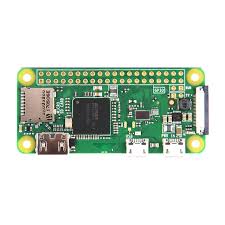
The Raspberry Pi Zero (original model and Zero W) uses the BCM2835 SoC, which differs significantly from the RP2040-based Raspberry Pi Pico. The Pi Zero is a full Linux-capable single-board computer (ARM11 core @ 1 GHz, 512 MB RAM), not a microcontroller. Therefore, the recommended and most practical approach for the requested tasks is to program in C under Linux (Raspberry Pi OS or similar), using libraries such as wiringPi (though deprecated in newer OS releases), lgpio / libgpiod, or direct /sysfs access. Bare-metal C programming is possible but considerably more complex and not commonly used for these simple tasks.
All examples below are written for Linux user-space C on Raspberry Pi Zero, assuming Raspberry Pi OS (Bookworm or earlier compatible release). Compile with:
gcc -o program_name program.c -lwiringPi   # if using wiringPi
# or
gcc -o program_name program.c -lgpiod      # for libgpiod (recommended in newer OS)
Enable wiringPi if needed (older OS): sudo apt install wiringpi. For newer OS, prefer libgpiod.
1. Drive a GPIO pin high/low at 1 ms intervals (simple toggle / blink)
This uses wiringPi for simplicity (widely compatible on Pi Zero).
#include <stdio.h>
#include <wiringPi.h>

int main(void) {
    const int pin = 0;  // BCM GPIO 17 (physical pin 11), change as required

    if (wiringPiSetup() == -1) {
        printf("wiringPi setup failed\n");
        return 1;
    }

    pinMode(pin, OUTPUT);

    while (1) {
        digitalWrite(pin, HIGH);
        delay(1);           // 1 ms delay
        digitalWrite(pin, LOW);
        delay(1);
    }

    return 0;
}
Alternative (using sysfs, no library required):
#include <stdio.h>
#include <unistd.h>
#include <fcntl.h>

void gpio_export(int pin) {
    char buf[64];
    int fd = open("/sys/class/gpio/export", O_WRONLY);
    sprintf(buf, "%d", pin);
    write(fd, buf, strlen(buf));
    close(fd);
}

void gpio_set_dir(int pin, const char *dir) {
    char path[128];
    sprintf(path, "/sys/class/gpio/gpio%d/direction", pin);
    int fd = open(path, O_WRONLY);
    write(fd, dir, strlen(dir));
    close(fd);
}

void gpio_write(int pin, int value) {
    char path[128];
    sprintf(path, "/sys/class/gpio/gpio%d/value", pin);
    int fd = open(path, O_WRONLY);
    char val = value ? '1' : '0';
    write(fd, &val, 1);
    close(fd);
}

int main() {
    int pin = 17;  // BCM 17

    gpio_export(pin);
    usleep(100000);  // Allow time for export
    gpio_set_dir(pin, "out");

    while (1) {
        gpio_write(pin, 1);
        usleep(1000);
        gpio_write(pin, 0);
        usleep(1000);
    }

    return 0;
}
Run with sudo for sysfs method.
2. Read analog-to-digital converter 20 times per second and append to file
The Raspberry Pi Zero (BCM2835) has no built-in ADC. Analog input requires an external ADC chip (e.g., MCP3008 via SPI, ADS1115 via I2C). The example below uses an MCP3008 on SPI (CE0) with wiringPi SPI support.
#include <stdio.h>
#include <wiringPi.h>
#include <wiringPiSPI.h>
#include <time.h>

#define SPI_CHANNEL 0
#define SPI_SPEED   1000000

int read_mcp3008(int channel) {
    unsigned char buf[3] = {1, (8 + channel) << 4, 0};
    wiringPiSPIDataRW(SPI_CHANNEL, buf, 3);
    return ((buf[1] & 3) << 8) + buf[2];  // 10-bit value
}

int main() {
    if (wiringPiSetup() == -1 || wiringPiSPISetup(SPI_CHANNEL, SPI_SPEED) < 0) {
        printf("Setup failed\n");
        return 1;
    }

    FILE *fp = fopen("adc_log.txt", "a");
    if (!fp) {
        printf("File open failed\n");
        return 1;
    }

    while (1) {
        int value = read_mcp3008(0);  // Channel 0
        time_t now = time(NULL);
        fprintf(fp, "%ld,%d\n", now, value);
        fflush(fp);
        delay(50);  // 50 ms → 20 Hz
    }

    fclose(fp);
    return 0;
}
Run with sudo. Connect MCP3008: MOSI=10, MISO=9, SCLK=11, CE0=8, CH0 to analog signal. Without hardware, this cannot function.
3. PWM example with 5 different duty cycles
The BCM2835 has two hardware PWM channels (PWM0 on GPIO18/12/13/19 variants, PWM1 on GPIO13/19/40/45/52). This uses wiringPi hardware PWM on GPIO18 (PWM0).
#include <stdio.h>
#include <wiringPi.h>

int main() {
    if (wiringPiSetup() == -1) return 1;

    const int pin = 1;  // wiringPi pin 1 = BCM 18 (PWM0)

    pinMode(pin, PWM_OUTPUT);
    pwmSetMode(PWM_MODE_MS);      // Mark/Space mode
    pwmSetRange(pin, 100);        // Range 0–100 for easy %
    pwmSetClock(192);             // ~100 Hz at 19.2 MHz base (adjust for frequency)

    float duties[] = {0.0f, 25.0f, 50.0f, 75.0f, 100.0f};

    while (1) {
        for (int i = 0; i < 5; i++) {
            pwmWrite(pin, (int)duties[i]);
            printf("Duty: %.0f%%\n", duties[i]);
            delay(2000);  // Hold 2 seconds
        }
    }

    return 0;
}
Note: Hardware PWM is limited to specific pins and frequencies. Software PWM (softPwmCreate) is available for any pin but less precise.
4. Output to serial port (UART) and/or USB/TTY
The Pi Zero has one UART (mini-UART on GPIO14/15 by default). USB serial appears automatically when using a USB-to-serial adapter or when configuring USB gadget mode (for Zero OTG).
#include <stdio.h>
#include <wiringPi.h>
#include <wiringSerial.h>
#include <unistd.h>

int main() {
    if (wiringPiSetup() == -1) return 1;

    // Physical UART on GPIO14 (TX)/15 (RX), 115200 baud
    int fd = serialOpen("/dev/serial0", 115200);
    if (fd < 0) {
        printf("UART open failed\n");
        return 1;
    }

    // USB CDC example requires gadget mode configuration (dwc2 + g_serial)
    // Once enabled, it appears as /dev/ttyGS0 on host PC

    int counter = 0;
    while (1) {
        char buf[64];
        sprintf(buf, "Counter: %d\n", counter++);

        serialPuts(fd, buf);               // To physical UART
        printf("USB/Console: %s", buf);    // To console (USB if SSH or direct)

        usleep(1000000);  // 1 second
    }

    serialClose(fd);
    return 0;
}
Note: For USB gadget serial on Pi Zero: edit /boot/config.txt to add dtoverlay=dwc2, then modules-load=dwc2,g_serial in cmdline.txt or modprobe.
5. Clocks on the Raspberry Pi Zero (BCM2835)
The BCM2835 has several clock domains (from peripherals manual):
- osc — Crystal oscillator (19.2 MHz nominal)
- pll domains (e.g., pllc, plld) — Phase-locked loops generating higher frequencies
- core — CPU core clock (typically 700–1000 MHz depending on model/overclock)
- apb — Peripheral bus clock (often core/2)
- pwm clock — Source for PWM (usually derived from pllc or osc)
- uart clock — For UART baud rate generation
- spi clock — For SPI interfaces
Unlike the Pico, there is no simple unified C API to read all clocks from user space. Reading requires either:
- Parsing
/sys/kernel/debug/clk/clk_summary(debugfs, needs root) - Using
vcgencmd measure_clock [arm|core|isp|h264|...](firmware call)
Example program using vcgencmd:
#include <stdio.h>
#include <stdlib.h>

void print_clock(const char *name) {
    char cmd[128];
    sprintf(cmd, "vcgencmd measure_clock %s", name);
    FILE *fp = popen(cmd, "r");
    if (fp) {
        char line[256];
        if (fgets(line, sizeof(line), fp)) {
            printf("%s: %s", name, line);
        }
        pclose(fp);
    }
}

int main() {
    printf("Common BCM2835 clocks:\n");
    print_clock("arm");      // CPU clock
    print_clock("core");     // Core/peripheral bus
    print_clock("isp");      // Image signal processor
    print_clock("v3d");      // VideoCore 3D
    print_clock("uart");     // UART clock
    print_clock("pwm");      // PWM base clock
    print_clock("emmc");     // SD card clock

    return 0;
}
Typical output (example values):
- arm: frequency(48)=1000000000
- core: frequency(4)=250000000
For low-level register access, refer to the BCM2835 ARM Peripherals manual and use libraries such as bcm2835 (C library for direct register access), but this is advanced and usually unnecessary for most applications.
Should you require bare-metal versions, clarification on external ADC hardware, or adjustments for a specific OS release, please provide additional details.