Raspberry Pi 3 C Code Example Reference
Raspberry Pi 3 Example Code Reference

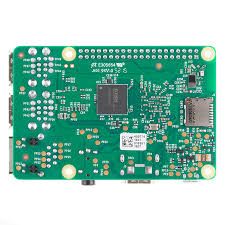
The Raspberry Pi 3 (Model B and B+) uses the BCM2837 SoC, a quad-core ARM Cortex-A53 @ 1.2 GHz (B model) or 1.4 GHz (B+ model) with 1 GB RAM. It runs a full Linux operating system (typically Raspberry Pi OS), so the examples below are written for user-space C programming under Linux, using the wiringPi library (still functional on many installations despite being deprecated) or direct sysfs access where appropriate. For newer Raspberry Pi OS releases (e.g., Bookworm), consider switching to libgpiod for GPIO operations.
Compile commands (adjust library as needed):
gcc -o program program.c -lwiringPi
# or for libgpiod (recommended on newer OS)
gcc -o program program.c -lgpiod
Run GPIO examples with appropriate permissions (often sudo for sysfs or wiringPi on some setups).
1. Drive a GPIO pin high/low at 1 ms intervals
Example using wiringPi (widely compatible on Pi 3):
#include <stdio.h>
#include <wiringPi.h>

int main(void) {
    const int pin = 0;  // wiringPi pin 0 = BCM GPIO 17 (physical pin 11)

    if (wiringPiSetup() == -1) {
        fprintf(stderr, "wiringPi setup failed\n");
        return 1;
    }

    pinMode(pin, OUTPUT);

    while (1) {
        digitalWrite(pin, HIGH);
        delay(1);               // 1 millisecond
        digitalWrite(pin, LOW);
        delay(1);
    }

    return 0;
}
Alternative (sysfs, no external library):
#include <stdio.h>
#include <fcntl.h>
#include <unistd.h>
#include <string.h>

void gpio_export(int pin) {
    char buf[16];
    int fd = open("/sys/class/gpio/export", O_WRONLY);
    if (fd < 0) return;
    snprintf(buf, sizeof(buf), "%d", pin);
    write(fd, buf, strlen(buf));
    close(fd);
}

void gpio_direction(int pin, const char *dir) {
    char path[128];
    snprintf(path, sizeof(path), "/sys/class/gpio/gpio%d/direction", pin);
    int fd = open(path, O_WRONLY);
    if (fd < 0) return;
    write(fd, dir, strlen(dir));
    close(fd);
}

void gpio_write(int pin, int value) {
    char path[128];
    snprintf(path, sizeof(path), "/sys/class/gpio/gpio%d/value", pin);
    int fd = open(path, O_WRONLY);
    if (fd < 0) return;
    char val = value ? '1' : '0';
    write(fd, &val, 1);
    close(fd);
}

int main() {
    int pin = 17;           // BCM GPIO 17

    gpio_export(pin);
    usleep(200000);         // Wait for export to settle
    gpio_direction(pin, "out");

    while (1) {
        gpio_write(pin, 1);
        usleep(1000);
        gpio_write(pin, 0);
        usleep(1000);
    }

    return 0;
}
2. Read analog-to-digital converter 20 times per second and append to file
The Raspberry Pi 3 (BCM2837) does not include a built-in ADC. An external ADC (e.g., MCP3008 via SPI, ADS1115 via I2C) is required. The example below uses an MCP3008 on SPI channel 0 with wiringPi.
#include <stdio.h>
#include <wiringPi.h>
#include <wiringPiSPI.h>
#include <time.h>

#define SPI_CHANNEL 0
#define SPI_SPEED   1000000

int read_mcp3008(int channel) {
    unsigned char buf[3] = {1, (8 + channel) << 4, 0};
    wiringPiSPIDataRW(SPI_CHANNEL, buf, 3);
    return ((buf[1] & 3) << 8) + buf[2];  // 10-bit result (0–1023)
}

int main() {
    if (wiringPiSetup() == -1 || wiringPiSPISetup(SPI_CHANNEL, SPI_SPEED) < 0) {
        fprintf(stderr, "Initialization failed\n");
        return 1;
    }

    FILE *log = fopen("adc_log.txt", "a");
    if (!log) {
        fprintf(stderr, "Cannot open log file\n");
        return 1;
    }

    while (1) {
        int value = read_mcp3008(0);               // Channel 0
        time_t now = time(NULL);
        fprintf(log, "%ld,%d\n", now, value);
        fflush(log);
        delay(50);                                 // 50 ms interval → 20 Hz
    }

    fclose(log);
    return 0;
}
Hardware note: Connect MCP3008: MOSI → GPIO 10, MISO → GPIO 9, SCLK → GPIO 11, CS → GPIO 8 (CE0), analog input to CH0. Run with sudo.
3. PWM example with 5 different duty cycles
The BCM2837 supports two hardware PWM channels (PWM0 on GPIO12/18, PWM1 on GPIO13/19). This example uses hardware PWM on GPIO18 (PWM0) via wiringPi.
#include <stdio.h>
#include <wiringPi.h>

int main() {
    if (wiringPiSetup() == -1) {
        fprintf(stderr, "wiringPi setup failed\n");
        return 1;
    }

    const int pwm_pin = 1;              // wiringPi 1 = BCM GPIO 18 (PWM0)

    pinMode(pwm_pin, PWM_OUTPUT);
    pwmSetMode(PWM_MODE_MS);            // Balanced mode
    pwmSetRange(pwm_pin, 100);          // 0–100 for percentage duty
    pwmSetClock(192);                   // ~100 Hz at typical base clock

    float duties[] = {0.0f, 25.0f, 50.0f, 75.0f, 100.0f};

    while (1) {
        for (int i = 0; i < 5; i++) {
            pwmWrite(pwm_pin, (int)duties[i]);
            printf("Duty cycle: %.0f%%\n", duties[i]);
            delay(2000);                // Hold each for 2 seconds
        }
    }

    return 0;
}
Alternative pins: GPIO12 (wiringPi 26), GPIO13 (wiringPi 23), GPIO19 (wiringPi 24). For any pin, use softPwmCreate() (less precise).
4. Output to serial port (UART) and/or USB/TTY
The Pi 3 has PL011 UART (more reliable than mini-UART) on GPIO14/15 by default (after enabling in raspi-config → Interface Options → Serial → No login shell, Yes serial port hardware).
#include <stdio.h>
#include <wiringPi.h>
#include <wiringSerial.h>
#include <unistd.h>

int main() {
    if (wiringPiSetup() == -1) return 1;

    int fd = serialOpen("/dev/serial0", 115200);  // or /dev/ttyAMA0 on older config
    if (fd < 0) {
        fprintf(stderr, "Cannot open serial port\n");
        return 1;
    }

    int counter = 0;
    while (1) {
        char msg[64];
        snprintf(msg, sizeof(msg), "Counter: %d\n", counter++);

        serialPuts(fd, msg);                    // Physical UART (GPIO14 TX / 15 RX)
        printf("Console/USB: %s", msg);         // stdout (USB if connected via SSH or console cable)

        usleep(1000000);                        // 1 second
    }

    serialClose(fd);
    return 0;
}
USB serial note: The Pi 3 does not natively act as a USB gadget like the Zero. Use a USB-to-serial adapter for additional ports or SSH/console output.
5. Clocks on the Raspberry Pi 3 (BCM2837)
The BCM2837 clock tree includes several domains managed by the VideoCore IV GPU firmware. Key clocks include:
- arm — CPU cores clock (nominal 1.2 GHz / 1.4 GHz, dynamic under load/thermal throttling)
- core — Core system / VPU clock (typically 250–400 MHz range)
- isp — Image Signal Processor clock
- v3d — 3D GPU (VideoCore) clock
- uart — UART baud rate source clock
- pwm — PWM peripheral clock
- emmc — SD card / eMMC clock
- pixel — HDMI pixel clock
- vec — Analog video encoder clock
- hdmi — HDMI overall clock
- dpi — Display Parallel Interface clock
There is no simple direct register read from Linux user space for all clocks. The standard method uses the firmware mailbox interface via the vcgencmd utility.
Example C program that calls vcgencmd to read common clocks:
#include <stdio.h>
#include <stdlib.h>

void print_clock(const char *name) {
    char cmd[128];
    snprintf(cmd, sizeof(cmd), "vcgencmd measure_clock %s", name);

    FILE *fp = popen(cmd, "r");
    if (!fp) {
        fprintf(stderr, "popen failed for %s\n", name);
        return;
    }

    char line[256];
    if (fgets(line, sizeof(line), fp)) {
        printf("%-10s : %s", name, line);
    }
    pclose(fp);
}

int main() {
    printf("Raspberry Pi 3 clock frequencies (Hz):\n");
    printf("----------------------------------------\n");

    print_clock("arm");
    print_clock("core");
    print_clock("isp");
    print_clock("v3d");
    print_clock("uart");
    print_clock("pwm");
    print_clock("emmc");
    print_clock("pixel");
    print_clock("vec");
    print_clock("hdmi");

    return 0;
}
Typical output example (varies with load and model):
arm       : frequency(45)=1200126000
core      : frequency(4)=250000000
...
For low-level access, advanced users may use the bcm2835 library or parse /sys/kernel/debug/clk/clk_summary (requires debugfs mounted and root), but vcgencmd remains the most reliable and supported method.
If you require examples using libgpiod instead of wiringPi, bare-metal programming, or clarification on specific hardware setups, please provide additional details.