Agentic Server Primer: Llama.cpp MCP Lesson 2: Dockerization.
Agentic Server Primer: Llama.cpp MCP Lesson 2: Dockerization.


In this lesson we will go over putting your MCP Server into a Docker Container. This is really important as it will allow you to map dozens of clean independent modules of agentic services to your LLM. Once you see the setup, you just make one for each directory and build away. Making a folder for each docker container recipe is required. Lets get started!
Install docker:
sudo apt-get remove docker-compose -y
sudo apt-get install docker-compose-plugin
If you need the Easy Bake Oven Recipe Guide for Docker / Containers!
 thinkmeltprotonmail.com
If you are now comfortable with docker we first will define our Dockerfile - that is used to create our image:
FROM python:3.11-slim

# Set environment variables to prevent Python buffering
ENV PYTHONDONTWRITEBYTECODE=1
ENV PYTHONUNBUFFERED=1

# Set the working directory inside the container
WORKDIR /app

# Copy dependency file first for better caching
COPY requirements.txt .

# Install dependencies
RUN pip install --no-cache-dir -r requirements.txt

# Copy the rest of the application code
COPY . .

# Expose the port the app runs on
EXPOSE 5000

# Set the command to run the calculator script
# Ensure your script binds to 0.0.0.0, not 127.0.0.1
CMD ["python", "mcp_a_calculator.py"]
Next we will need to define our requirements.txt: Example:
# Example:
starlette
fastmcp
uvicorn
# Add other dependencies here
Now we will build it:
docker build .It should look something like this as it builds:
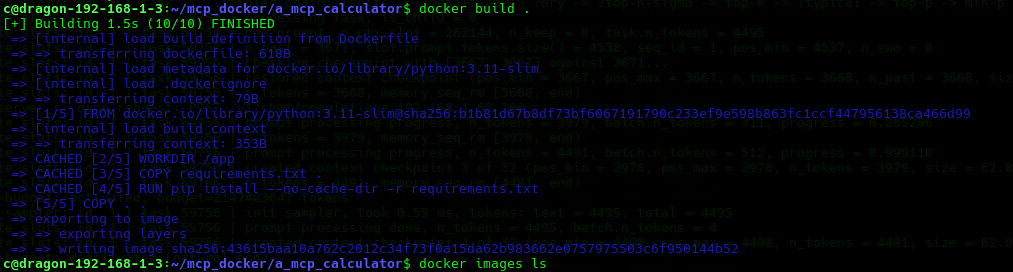
When it is done you can type:
docker images
Next up we are going to define a docker-compose.yml this tells docker how to raise the images into containers:
version: '3.8'

services:
mcp_server:
build: .
ports:
- "0.0.0.0:5000:5000"

restart: unless-stopped
The old method of starting a docker container was:
docker-compose up
# or
docker-compose up -d
# start it in daemon mode
If you do not specify -d you are really standing it up in diagnostic mode - which will look something like this:
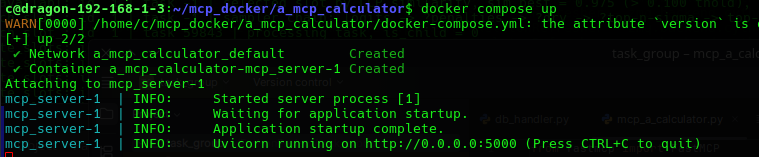
If you use the -d option it will go into daemon mode. You can see it with:
docker compose up -d
In text:
CONTAINER ID   IMAGE                         COMMAND                  CREATED              STATUS                    PORTS                                                    NAMES
067c837e539f   a_mcp_calculator-mcp_server   "python mcp_a_calcul…"   About a minute ago   Up About a minute         0.0.0.0:5000->5000/tcp                                   a_mcp_calculator-mcp_server-1
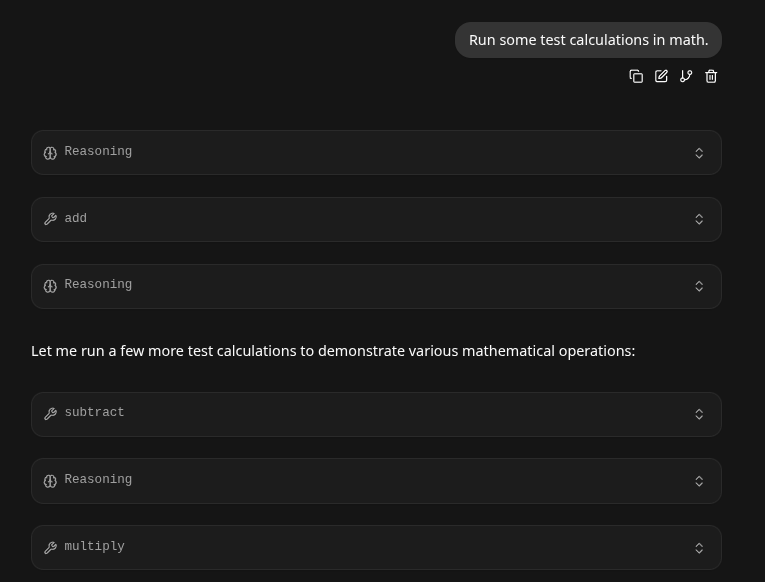
Going back to our Llama.cpp Agentic Server we test if it works:
Taking the Container Down
From inside the folder simply put:
docker compose downExpanding the Image Larger
- Simply run the same build command and docker compose command as before, or:
docker build . --no-cacheConclusion
- Because we set docker-compose.yaml to 'restart: unless-stopped' this container will now run independently, non-stop, even through reboots, in it's own container on port 5000. Then you can easily add your next tool say to port 5001.
- This guide is really important for the next step - giving your LLM it's own python compiler!